How about still using Windows XP? Simplicity, lack of bloat, lack of AI, support for old games. I’ve always loved XP. Of course it didn’t feel lightweight in 2002 when installing the first Windows NT version intended for home users. Way bigger than 98SE, more demanding than 2000 Professional and with a nauseating default theme that is as dysfunctional as the (then) newly introduced Start Menu. Over the years I’ve mastered switching off all crap on a fresh XP installation in very few minutes. Still in muscle memory to this day. Using XP gives me a nostalgic feeling just like the boot sound of a PlayStation 1 coming from the powerful speakers of a big CRT TV.
In this entry I want to explore this classic OS from the perspective of security. This could be very short by saying, “There is no way to truly secure it.” Nevertheless I’ll try my best.
This blog entry assumes your XP machine will be used as isolated sandbox for legacy software. The primary threats are remote network exploits (hence the solution: air-gapped offline machine). Other attack vectors are malicious USB devices, exploits in data files you copy to the vintage machine and physical theft. It is possible to deal with the latter threats to some extent.
⚠️ 0 – Important Warning and Disclaimer Box ⚠️
In order to prevent cluttering my text with warnings interrupting the reading flow I’ll just put everything in this regard inside the box below. This doesn’t mean the warnings are unimportant or should be skipped. Quite the contrary.
Skipping the warnings can put your modern machines at risk!
- Just stating the obvious, but I have to: Windows XP is not secure and never will be secure again! If you have to really protect data, you are at the wrong place right now. Stop reading this blog entry and stop playing around with vintage computers! Full confidentiality of your data can only be achieved by applying proper full disk encryption in conjunction with file based encryption on a modern machine running a security-focused, modern operating system. Tinkering with outdated OSs on museum computers is fun—if and only if – such PCs are fully isolated from important devices
- Side note for modern systems: I recommend using GrapheneOS and Qubes OS. Store data at rest encrypted by LUKS or VeraCrypt (or BitLocker when using latest Windows 11). Avoid the default TPM-only option for BitLocker. It is inherently flawed and has seen many ways of bypassing
- Please acknowledge that this text is NOT a tutorial and not an advice to use outdated operating systems in practice or even online. Therefore I won’t provide 100% detailed step-by-step instructions on all settings. The author of this blog entry takes no responsibility for anything you do based on this text. Again: This is not a tutorial, just sharing my experiences while inviting you to have some fun with legacy hard- and software. Stay safe online and keep vintage PCs isolated and offline!
- Careless playing around with ATA Security is highly dangerous. The Linux program
hdparmis not a toy! You can lose all your data, permanently lock yourself out of your HDD/SSD or even cause irreparable hardware damage. Before usinghdparm, do some serious RTFM! I’m not kidding! More general background information can be found in another box below dedicated to HDD passwords - Don’t reuse important passwords for BIOS or HDD/SSD locking! Very weak hashing (old BIOS) or even plaintext storage (on HDD platters) might essentially disclose your secrets to advanced adversaries when you do this anyway. A simple to mediocre password is enough for adding these little hurdles. Generally you should avoid reusing any good passwords for anything on vintage machines. To prevent forgetting sparingly used passwords applied to museum PCs: store them in a password manager. But don’t resort to reusing important ones!
- Encrypting File System (EFS) is not sufficient to guarantee confidentiality. For additional security you should store important files in a VeraCrypt container. But please acknowledge that temporary files, metadata and registry artifacts aren’t protected without full encryption applied on the system drive. The possibilities of leaks are numerous and you can’t rule out that an attacker is able to partially access private information despite EFS and VeraCrypt containers.
- Signature based anti-malware is intentionally omitted in this text. Almost no anti-malware product receiving latest signatures will still run under an OS published in 2002. A seemingly still working free version of Avast (or was it AVG?) trashed one of my XP installations for no apparent reason. Signature based approaches (blacklisting) or heuristics is a totally flawed concept in the first place. False negatives (malware slips through) and false positives (useful software gets blocked) are very common. If you still want the opinion of a malware scanner I recommend connecting your vintage drive via a IDE→USB or SATA→USB adapter to a modern PC
- I’m not a security professional, but an interested user. I probably missed crucial things or even messed up badly. Let me repeat: This is not a tutorial!
1 – Basic Installation
With the warning-and-disclaimer-BS out of the way, what can we do to minimize attack vectors while maximizing usefulness of an XP computer? As an example I will take an Acer Extensa 3000. This is a lowest end PC that was already garbage-grade in the year 2006. A friendly lady has been ripped off when buying this as her first laptop. I could rant away about integrated SiS graphics, a dysfunctional battery, too little RAM… alas… it is too much off-topic and bad for my blood pressure.

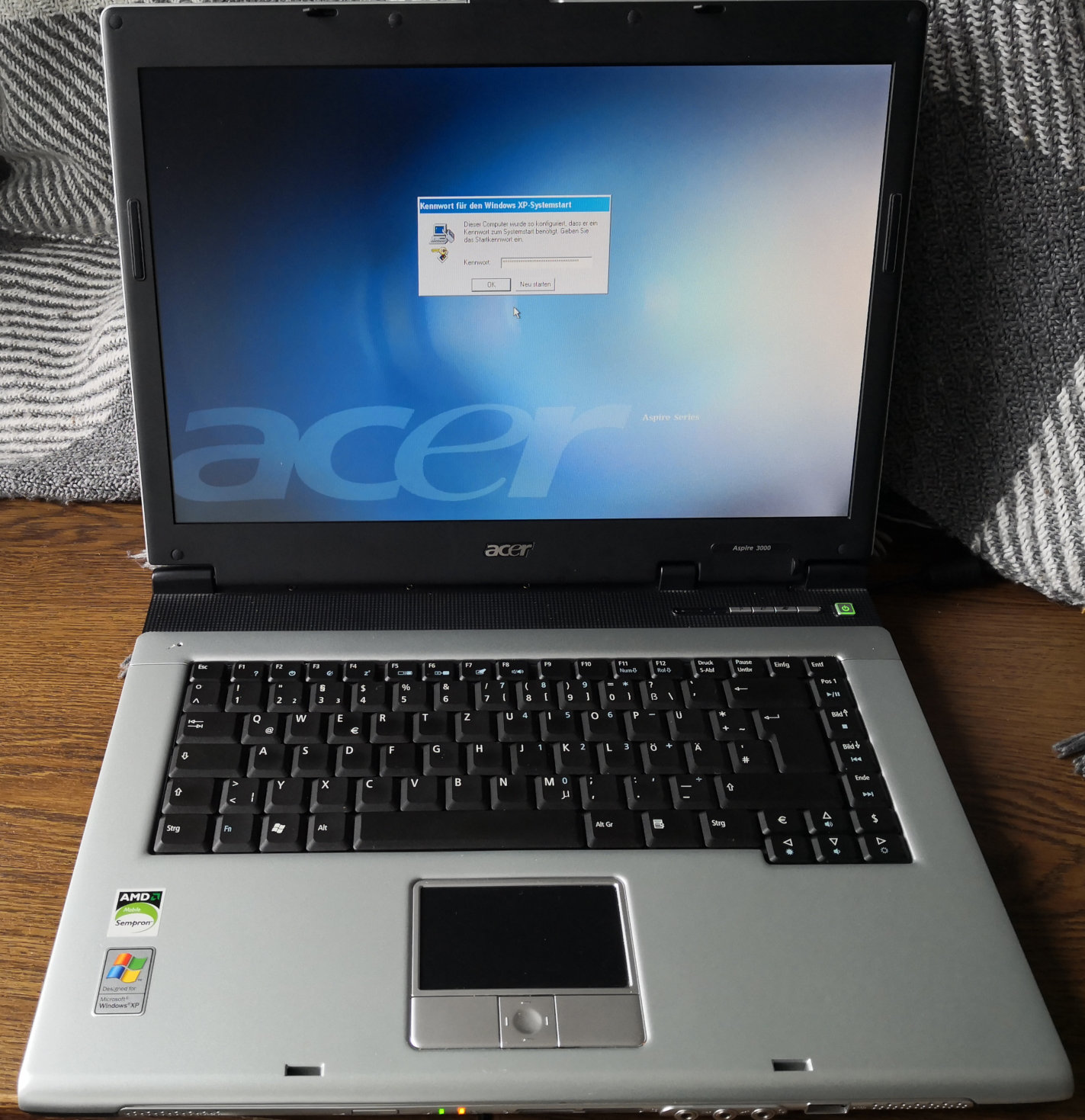
(Open all images in this blog entry in a new tab for full resolution!)
1.1 – Things Needed from Microsoft
- XP Professional SP3→ Home Edition is useless
- Internet Explorer 8
- It won’t work with any modern website and you shouldn’t use it. The only real use of IE is Legacy Update and local stuff from old “interactive CD-ROMs”
- Windows Media Player 11
- .NET Framework 4 and 3.5 (containing 2.0 as well) and all applicable VCRedist → Increases complexity and attack surface, but also compatibility
- If you have a license (I don’t): Microsoft Office 2010. I had to resort to my 2007 license
- All updates up to April 2014
- Windows updates
- .NET updates
- Internet Explorer updates
- Windows Media Player updates
- All applicable Microsoft Office updates (if installed)
- All updates up to April 2019 with the POSReady 2009 registry setting if your CPU supports NX, DEP, PAE and possibly SSE2 instruction set
Legacy Update will make installing all updates easy. It will also only offer setting the POSReady registry hack if your CPU is compatible. The process takes a few reboots and a few hours until there are no more updates left.
No, I do not want to use some pirated sketchy, unofficial “ultimate” version with all updates already applied and I also saw no need to slipstream everything into a custom CD image (will most likely not fit on CD anymore, which is bad for laptops with CD-only drive. I have and actually use computers that old)
1.2 – Backup Image Time!
Having all updates installed is a great moment to backup the installation with Clonezilla. Nothing is more frustrating than waiting hours and hours for updates to finish… just to have a perfect installation trashed by a dumb mistake or a failing HDD
Before rebooting to Clonezilla you should clean up to reduce image size and speed up image creation
- Run
cleanmgr.exe - Delete all
$NtUninstallfolders inC:\Windowsas well as log files created by updates - Clean all temp folders:
C:\Windows\tempand temp in your user account - Remove all system restore points
- Disable page file and hibernation file (don’t forget to re-enable after backup)
- Run defragmentation on
C:\
2 – OS-Independent Security Aspects
2.1 – Physical Security
If your system is as weak as my old laptop and cannot handle full disk encryption with VeraCrypt 1.25.9 an attacker can bypass all security by booting from CD/DVD/USB or by simply accessing the drive in their own PC. Physical security (lock away laptop, tamper evident seals) is needed to counter this. Elaborating on physical security and Evil Maid Attacks would need at least three times the text of this lengthy blog entry. Trying to prevent Evil Maid Attacks requires behavioral changes for most people and additional surveillance technology to protect your belongings. → Off-topic, out of scope
2.2 – BIOS Passwords
BIOS passwords protecting boot process (set to internal HDD only or at least as first option) are of questionable effect. Often there are ways to circumvent them with hardcoded master passwords and/or resetting CMOS by physically shorting two points on the motherboard. Laptops generally perform a bit better than desktops in this regard, but often can be unlocked with publicly available key generators.
2.3 – ATA Security (HDD Password)
A very slightly more effective measurement is applying ATA Security also known as HDD password. First of all: circumventing ATA Security is possible. Expensive and specialized forensic software leveraging firmware shortcomings is able to reset HDD passwords or even retrieve them in seconds on many models. In some cases advanced hobbyists successfully attacked HDDs on hardware level. Do not overestimate the security of this simple gatekeeper!
Background Information on ATA Security
ATA Security offers two different passwords, Master and User. Many laptops, including my weak old Acer, only allow setting the User part while leaving Master on factory default setting. The security level is set to “High”. For ATA Security to be of any notable value you must also set Master password with hdparm to prevent access via known default keys. Some drives do not implement these functions correctly and fail setting the Master part or don’t unlock with Master
I want to add my two cents on the misleading naming of the two available security levels:
- The default option is called “High” – a more fitting description would be “Basic” since access by somebody else (Master) is intentionally(!) given. It doesn’t matter much when you close this loophole yourself with
hdparm - Option number two is called “Maximum” suggesting a silver bullet against all possible attacks. A better description would be “Enhanced “, because a firmware exploit or hardware attack is needed to access the protected HDD without knowing User password. Master may only force erase the drive when security is set to “Maximum”
You must set the User HDD password using BIOS setup, not hdparm. Often BIOS doesn’t use the entered password directly. Instead it uses scancode numbers associated with the keys you pressed (or it might even obfuscate your password before sending it to the drive). Setting a User password with hdparm will make the same password fail on the BIOS prompt and your laptop won’t boot!
For SSDs one can assume them to be self-encrypting devices (SEDs). In addition to OPAL Storage Specification, SATA based SSDs should support the old ATA Security feature. Don’t assume SEDs to be flawless. A quick search for “Self-encrypting deception” will lead to a notable video showing bypasses on earlier models.
Despite neither BIOS password nor ATA Security are on par with data protection offered by LUKS, Bitlocker or VeraCrypt there is no reason to not use them (no performance penalty) when applied correctly (no reuse of good passwords you applied on important, modern stuff)
3 – Locking Down XP
For anything below to be effective I assume you will work with a limited user account after initially setting things up with an admin account. Use two different, strong passwords for admin and limited user account. Seriously, do NOT use an account with admin rights for everyday tasks.
This is still true for modern Windows by the way. User Account Control (UAC), introduced in Windows Vista, is not a security feature. This is especially true when staying on default configuration on Windows 7 and newer. UAC is a convenience tool. Just look up “UAC bypass”. Being logged into an admin account artificially limited by UAC can give you the false impression of security.
Install all programs you want to have on your XP machine. Of course most software compatible with such an old OS isn’t maintained anymore which means any application you add will potentially add attack surface. You must therefore strictly control which files may go into your XP box.
Unfortunately I do not have an installation of XP in English language at hand. Because of this my screenshots are in German. But since this is not a step-by-step tutorial it should be acceptable. An easy search will immediately give you recommendations on which services can be safely disabled.
Before continuing you have to ask yourself: “What is my vintage PC going to be used for?” Depending on the designated task you can secure things pretty tight… or not.
3.1 – Option A) Gaming
When loading old games, including their dubious CD/DVD based copy protection schemes, all security goes down the drain. Same if you use cracked versions. No matter what you try. Many older games do not work correctly when using limited user accounts and some even write their save data outside the user profile (into C:\Program Files\Game or even worse C:\Game). Games will often mess up NTFS Access Control Lists (ACLs) undermining the security model. In this case: keep the system offline, don’t exchange any data with any modern system and happy gaming! A gaming PC doesn’t need to be a fortress.
3.1 – Option B) Reliable Office PC
The other and far more interesting case: Maximizing local security for creating a reliable office PC. What could be the reason for having an XP installation nowadays? Special hardware without drivers for modern OSs is a classic case. Although Windows is pretty good at supporting many old 32-bit programs developed in roughly three decades, there are sometimes some exceptions. This is especially true in conjunction with the specialized hardware example. It is also not a good idea to install legacy software on a productive, modern system. Legacy apps can bring their own security implications on said modern devices.
You might have guessed it… a weak Acer Extensa 3000 with integrated SiS graphics is completely incapable of running games beyond Minesweeper and Solitaire. No wonder I went with the more interesting approach!
3.1.1 – Option Various Settings in secpol.msc and Deactivating Services
A well-known and effective harm reduction method is reducing attack surface in the form of reducing complexity. Any background service which is not needed should be inactive.
Non-exhaustive unsorted list of services to disable:
smb (sharing files and printers), automatic updates since there are none left, Network Location Awareness, Computer Browser, Server, Remote Desktop (Terminal Services), UPnP, Webclient, Media Player Network Share, Fax
Giving concrete recommendations is hard since it will depend on what you actually need to be running on *your* computer. Just look at the amount of services I set to being permanently inactive

Useful Security Policies:
- Deactivate build-in Administrator and Guest accounts
- Disable creating LM password hashes, change your passwords afterwards to make sure LM hashes are purged
- Require CTRL+ALT+DEL for login
- Don’t show last username
- Password complexity
- Lock accounts for 30 minutes after 5 failed login attempts to prevent hammering attacks

Useful Group Policies:
- Disable Autorun for all drives
- Disable Movie Maker, Messenger, Remoteshell
- Disable Internet communication (publish online, order pictures, error reporting, printing over HTTP and so on)
XP can almost count as modern OS in regarding the amount of stuff that should be neutralized. I makes little sense to list every single setting within the vast gpedit.msc – but it makes much sense for you to go through the complete thing once.
3.1.2 – Software Restriction Policies (SRP) aka “Safer”
Software Restriction Policies were introduced into Windows with XP and still exist today (deprecated, not working out of the box on later Win 11).
For incomprehensible reasons even currently supported versions of Microsoft Windows allow executing arbitrary programs from arbitrary locations. This includes the directory where you e-mail client just put “invoice.pdf.exe” which appears as “invoice.pdf” in explorer when still having default configuration. One weak moment and you will start the malware yourself.What a great form security!
SRP, also known as “Safer” (it’s name in the registry) is a pretty powerful whitelisting feature. I would go as far as saying it is THE most important and most effective harm reduction measurement you can apply on legacy Windows.
SRP is not bulletproof and certainly will have known ways of circumvention by now. I confess I was too lazy to look up the details. What SRP will achieve despite possible circumvention methods is: Make accidentally starting malware yourself highly unlikely. Of course it can’t compete with the currently maintained App Control for Business in Windows 10/11 (which you should definitely use to protect your modern Windows PCs from unknown malware). Even App Locker, available since Windows 7 Ultimate, is more versatile. → off-topic, out of scope
On good old NT 5.1 we are limited to what “Safer” offers.
- Open
secpol.mscand create new SRP - Set default policy to “Not allowed”
- Apply rules to all executable files including DLLs. Enforcing restrictions on DLLs might cause a slight performance hit but I didn’t even notice it on my pathetic laptop
- Apply rules to normal users only. Local admins can write into whitelisted locations and switch of SRP off altogether. Trying to limit them make little sense. If an attacker gets local admin they have already fully pwnd you… Game Over!
- (Optional) blacklist all drive letters but
C:\with path rules forbiddingA:\* B:\* D:\*and so on
- Tighten ACLs. Make sure non-admin users have no write privileges for any sub folder or file under “
C:\Program Files” and/or “C:\Windows” - Installers of older software, including games, might create loopholes. Since the default policies allow starting any
.exefile located under these folders, the protection offered by our whitelisting feature gets nullified if there is a single file or folder with write access for normal users within the whitelisted folders. - Default ACLs contain “
OWNER CREATOR” – this might backfire! Replace ACLs with restrictive versions. Administrators and System may have full access, standard users may only read and execute (from trusted locations)
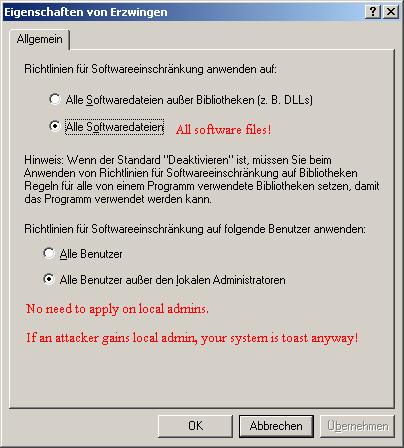

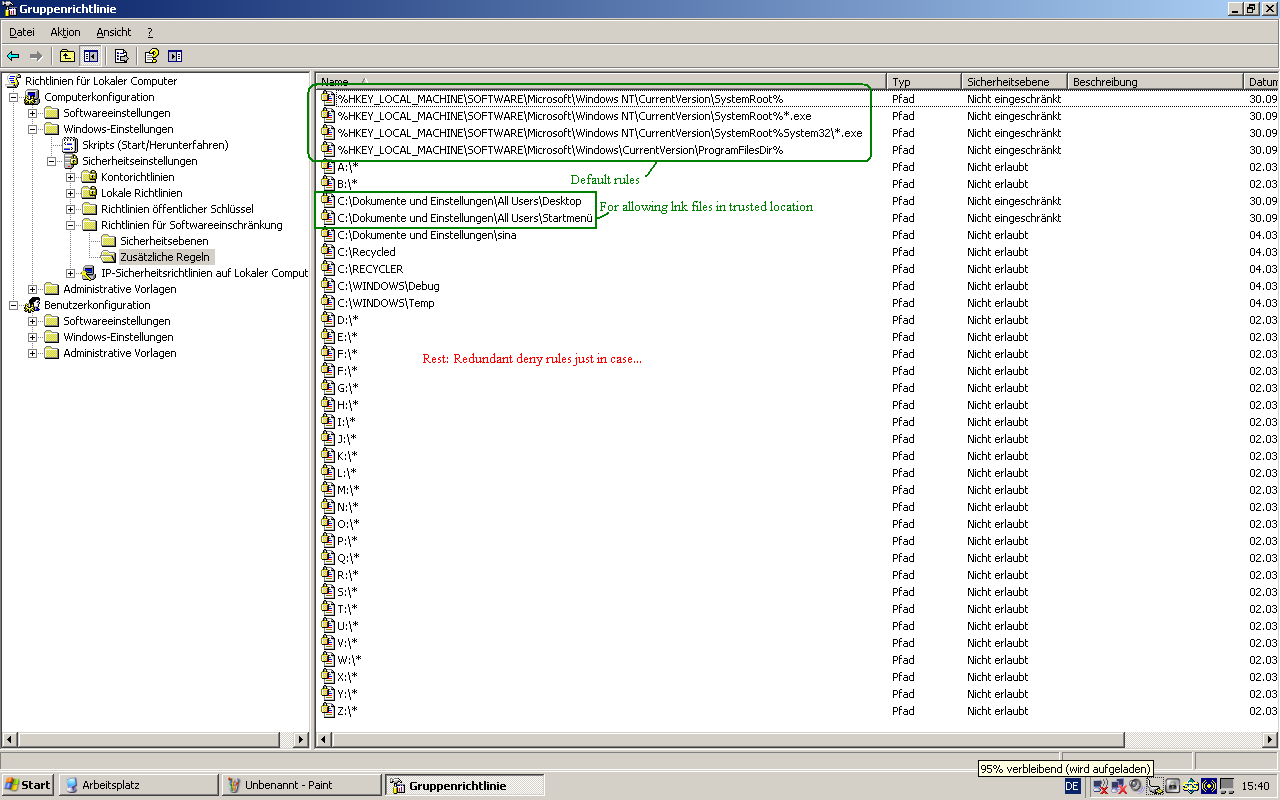
A serious limitation of SRP is that it can’t apply hash based rules on .DLL files, at least under XP. Whitelisting only trusted applications (based on their hash or signing certificate) is a way more robust defense than path based rules. App Control for Business should be your friend on modern Windows. Below a screenshot showing SRP in action. Any executable file outside the trusted locations is blocked. For demonstration purposes I tried starting the eicar.com not-a-virus test file simulating a user error which normally would lead to malware execution.

3.1.3 – EMET (Enhanced Mitigation Experience Toolkit 4.1)
EMET was an effort of trying to add exploit mitigation methods to Windows. Since Windows 10 EMET is neither supported nor needed because everything it offered (and more!) is already part of the OS itself. Many options like mandatory ASLR require Windows Vista or 7 at minimum, but a few technologies can be applied on XP.
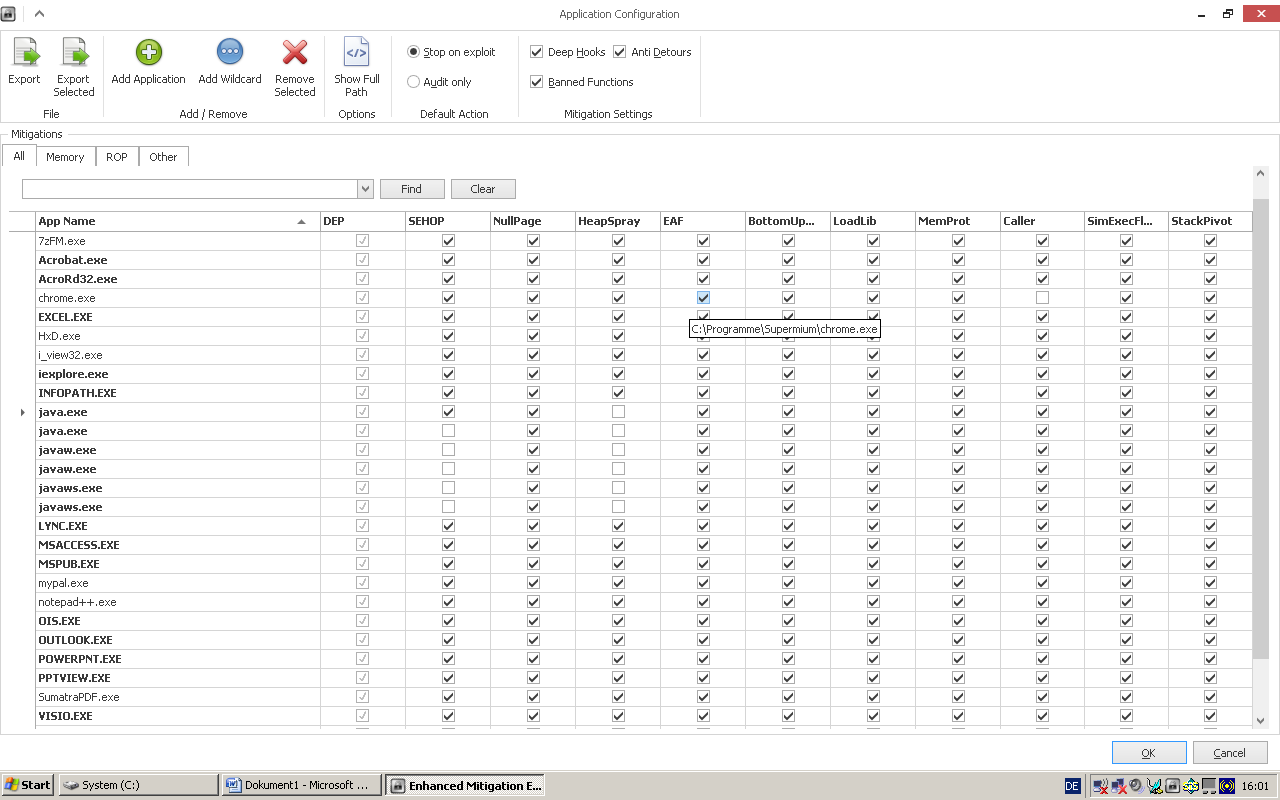
EMET allows automatically setting /NoExecute=AlwaysOn in boot.ini for enforcing DEP/NX on all processes. Below a screenshot on the overview showing DEP is forced for all processes and two running programs (HxD, notepad++) are protected by EMET.

Structured Exception Handler Overwrite Protection (SEHOP) can’t be applied system-wide on XP, but it is possible for individual executable files. ASLR is missing altogether. It is and stays an OS from 2002…
All applications marked in bold on the next screenshot are given by default – mitigation options are selected regardless if these apps are installed or not. Those not written bold have been added manually. Activate everything for a program and see if it works normally. More information is in the EMET manual.
3.1.4 – Encryption File System (EFS)
Without encryption any mildly competent adversary will be able to access your data. To achieve at least a minimum of protection, please encrypt your personal folders with EFS. Just open properties of a folder and select “Encrypt files”. That’s it. Well, that’s it for the encryption part.
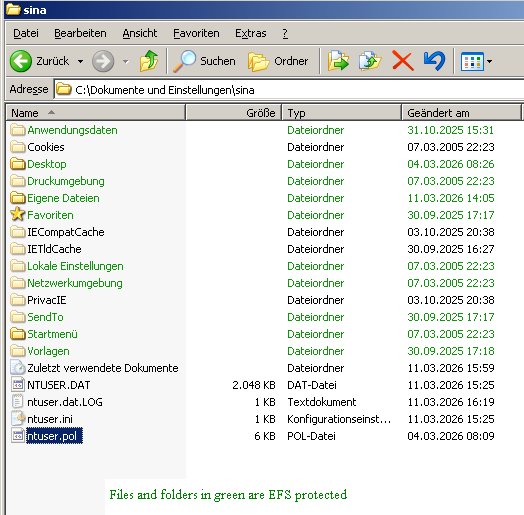
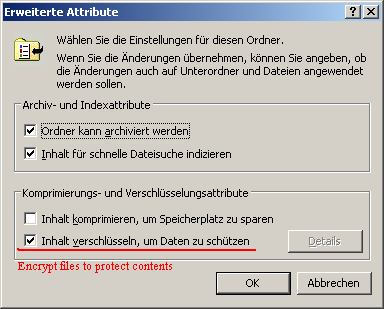
Unfortunately EFS has an unflattering nickname. Sometimes it is called “Delayed Recycle Bin”. This term refers to the fact that the certificate, notably the private key, needed to perform decryption has to be exported and backed manually to ensure future access. Even when backing up your files to another medium the (transparent) encryption will stay in effect. If your laptop HDD dies or you reinstall Windows, all backups on NTFS formatted backup media become useless random data without the certificate!
Newer Windows versions automatically open a user friendly wizard after encrypting your first file. In case of XP you have to do it manually. → Look it up, too much text and/or too many screenshots would be required here
Security provided by EFS is directly dependent on your login password. If this password is in range of bruteforce or raibow table attacks an attacker can decrypt your data.
3.1.5 – (Optional) Activate Syskey SAM Database Protection
Yes, it is old. No, it isn’t secure by today’s standards (RC4, MD5). It has been abused by scammers as ransomware and rightfully has been removed from Windows.
A strong Syskey will add a little protection against offline bruteforce attacks. EFS relies on your account password stored within SAM database in hashed form. A strong Syskey will protect the SAM.
I would not recommend an automatically created key on a floppy disk: Anybody that has the floppy can decrypt your SAM, while a strong password is in your head. In free constitutional states passwords are covered by no self-incrimination laws. I’ll omit any further comment on this important achievement of civilization gradually being removed.

In case of a powerful computer, especially one with a CPU supporting hardware AES, you should skip EFS and Syskey in favor of VeraCrypt. Side note: For a modern Windows PC you should consider combining full disk encryption (Bitlocker or VeraCrypt) with file based encryption (EFS). The additional layer allows putting your personal data at rest (purging encryption key from memory) by logging out. The impact on performance of modern systems is negligible.
4 – Backup Image Time! (2)
Enjoy a classic operating system! Distraction free working and access to legacy software are good reasons for setting up an XP box. But for the case anything goes wrong later on:
Run Clonezilla again, this time containing your entire configuration and your software. Depending on how much software you installed the compressed image might even fit on a single DVD, maybe dual layer. An archival grade disc will keep your work secure for decades; probably longer than your computer will last.