Did you ever find an Symbian based Nokia phone containing an SD in your drawer after many years? Now you want to see if there are any worthwhile photos on there. Where is the charger with the tiny coaxial power connector again? Do you still have it? Nevermind. You will just take the SD card out and put it into a laptop. What’s that? No new drive shows up! Nothing happens. Just like “Magikarp used Splash!” in a Pokémon game. Did the old SD give up the ghost? Not necessarily. It might just be locked with a password by CMD-42
1. What is the SD Password Functionality?
Even searching for this topic online is hard. A lot of articles or pseudo-blog entries, possibly created automatically, will pop up when searching for things like “password protect SD card”. These results often push encryption software made by the website owner/company who published the article. Or – the better case – they describe how to use well-known encryption tools for protecting the contents of an SD card. Thanks, I already know how to use VeraCrypt, BitLocker and LUKS. Can we now talk about the raw command CMD-42? This is a low-level SD/MMC command that tells the card to lock/unlock access to the media.
⚠️ Safety and Security Warnings⚠️
- A) Never use this command on the internal eMMC of a device! Double check you’re applying any raw MMC commands on an SD reader, not an internal eMMC chip, to prevent permanently bricking a device.
- B) Such experiments can backfire. If some SD card doesn’t adhere to the standard it might fail to correctly execute commands. Backup your data before tinkering or even better use an empty and old SD for testing.
- C) Do not rely on CMD-42 LOCK_UNLOCK in case you must absolutely rule out that an attacker, even an advanced one, can access your data! Use well-known and tested encryption software like those mentioned above instead!
1.1 Access Control, but no Encryption
The SD password is just an access control mechanism. The little micro-controller inside an SD will ignore almost all commands until the correct password is provided after each power cycle. That does not mean the data is fundamentally inaccessible. At least for old SDs there are ways of attacking them in order to guess the password. A very advanced, or even state level, attacker could ignore the controller and directly read out the flash chip.
Search for: “Poking the S in SD cards” (by Nicolas Oberli)
Unless the SD is specifically marked as self-encrypting device (SED) you have to assume it can be read without knowing the correct password.
Common SSDs for PCs are SEDs. For NVMe type look up Opal Storage specification for more information. Even older SATA SSDs encrypt all data by default without having to activate this function. By default the needed master key is available without password. Both OPAL, and the older ATA-security feature can be used to protect data with hardware encryption.
This is, however, not without problems. At least for older SSDs there are known vulnerabilities. → Look up “Self-encrypting deception – weaknesses in the encryption of solid state drives (SSDs)”
Positive side effect of SEDs is their ability for crypto-shredding: Securely erase the complete SSD takes only seconds (throw away current key, generate new random key)
In doubt activate software based encryption with VeraCrypt, BitLocker or LUKS .
1.3 Usage Examples in the Wild
You might want to assume that the password function isn’t used at all. But it is. Unfortunately in most cases it is used against the user. Under the cloak of copyright protection (or company secrets) the function gets (ab)used as DRM to keep the customer out. A quick search for “Pioneer Firmware AVH GitHub” will give you an example. In this case somebody figured out Pioneer’s passwords.
As mentioned in the introduction old Nokia phones supported the function working for the user’s benefit. Still interested in seeing what photos might be on there? Better find the coaxial charger. Your phone should still remember the password.
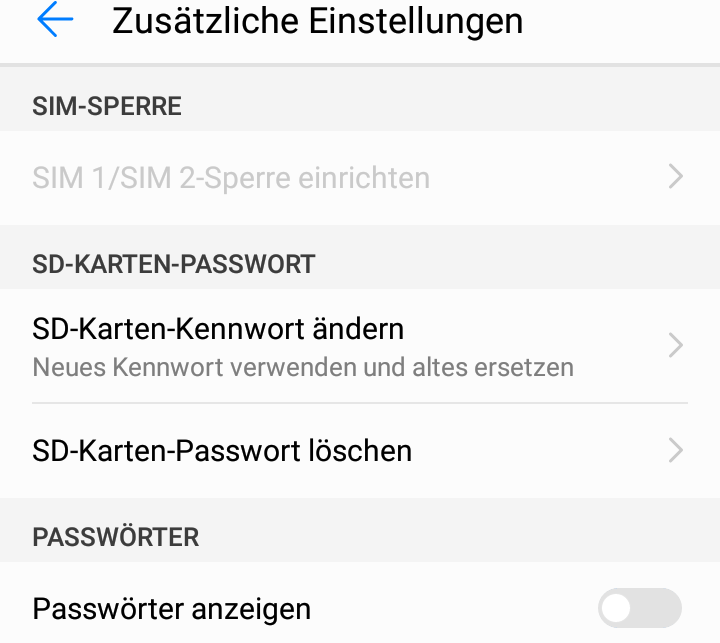
In front of me is a Huawei Y7 smartphone running Android 7. Since the phone has an unlocked bootloader and Magisk it is an excellent device for testing. I activated the password function. Unlocking by the main OS is transparent. Seemingly nothing changed. But when putting the SD in a PC or rebooting the phone into TWRP the SD plays dead.
2. Usage on Linux PC
Having to rely on old phone for extracting data from an SD isn’t satisfactory. I’m not getting any younger. I want a big screen, a proper keyboard and possibly a mouse and not a touchscreen or just a few tiny buttons (Symbian phone). It can be done on Linux PCs.
2.1 Kernel Patch!?
The first option I found is so complicated that I did not (yet?) even try. An internal SD reader in a laptop which exposes a /dev/mmcblk device instead of /dev/sdX can do it. Theoretically at least. Unlike the read-only topic I found no readily available app supporting the feature.
Furthermore there are reports of laptops being unable to detect protected cards. Going down the rabbit hole of applying some kind of old kernel patch to enable detection… that is too much for now. Long story short: it goes over my head. No idea if this patch has ever become part of mainline kernel. At some point I will have to look deeper into mmc-utils.
But there is an easier option:
2.2 USB Device
The inexpensive Transcend RDF5 officially supports it with GPLv3 licensed code found on GitHub.
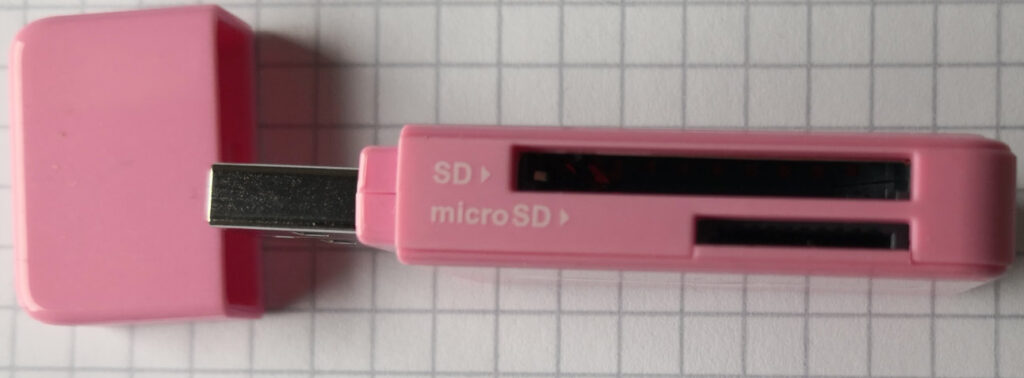
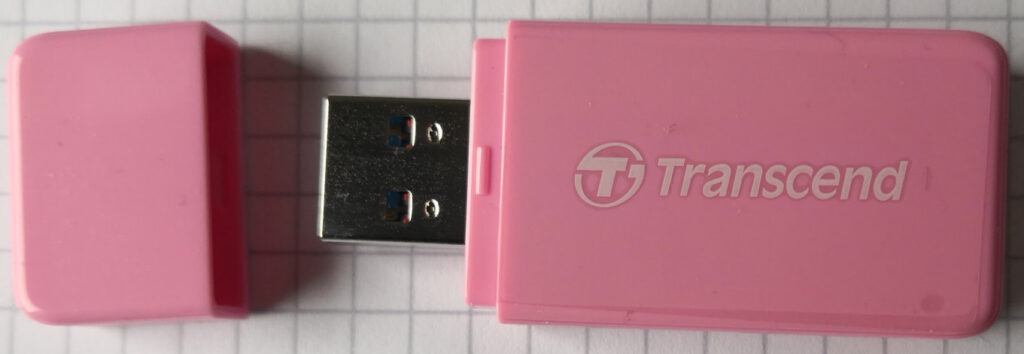
Despite USB SD card readers typically only expose the possibilities of standard USB mass storage devices, this one is different. It might or might not work on other devices, maybe with secret vendor specific commands. In case of Transcend RDF5 there is official support for pass-through of raw MMC commands. What they’ve delivered looks a little rushed and minimalist. You have to compile it yourself, but the good news is: it works perfectly!
# set password
sudo ./sdsecure --set-pwd <Password> <device>

# unlock a protected SD
sudo ./sdsecure --unlock <Password> <device>

# Command line options are self-explanatory
# Just use
./sdsecure --help
Here comes a point where I’d need the help of a skilled developer: How about trying to expand the little console app Transcend published with an option to toggle read-only? No idea if it works, or if the RDF5 is only willing to pass through the few certain commands given, but it would be worth a try.
2.3 Factory Reset an SD?
Factory reset an SD card? Sounds strange. I found the question how to do a factory reset on an SD on GBAtemp. In the end the question this forum question was about correcting a wrong partition size. But an SD can be factory reset. Same caveat as in the Warning C) – Physically the data will still exist after resetting. Resetting takes just a moment. Not remotely enough time to overwrite everything.
3. What is still missing?
While Android phones/tablets have their internal memory encrypted, inserted SDs are (normally) not. To add at least a basic security against casual attackers this feature feels like a must-have for Android phones/tablets. Sadly the vast majority of devices doesn’t support it out of the box. At least for rooted Android I see a theoretical possibility of adding SD password support.